Skip to content
A digital Inspection records the condition of a vehicle with photos, notes and checklist items for a Vehicle and can be sent straight to your Customer.
This article shows you how to create an Inspection, request approval for related works from your Customer and then populate a Booking or Job with those details.
Please note: Inspections are a feature of our Gold level subscription. If you would like to upgrade you can do so on your dashboard or speak with your Account Manager for more information.
Inspect a Vehicle
When you Inspect a vehicle you will create an Inspection linked to a Customer and Vehicle, assign an Inspection Template, complete the Checklist Items, request Approval, then Finalise the Inspection optionally linking it to a Booking or Job.
Creating a New Inspection
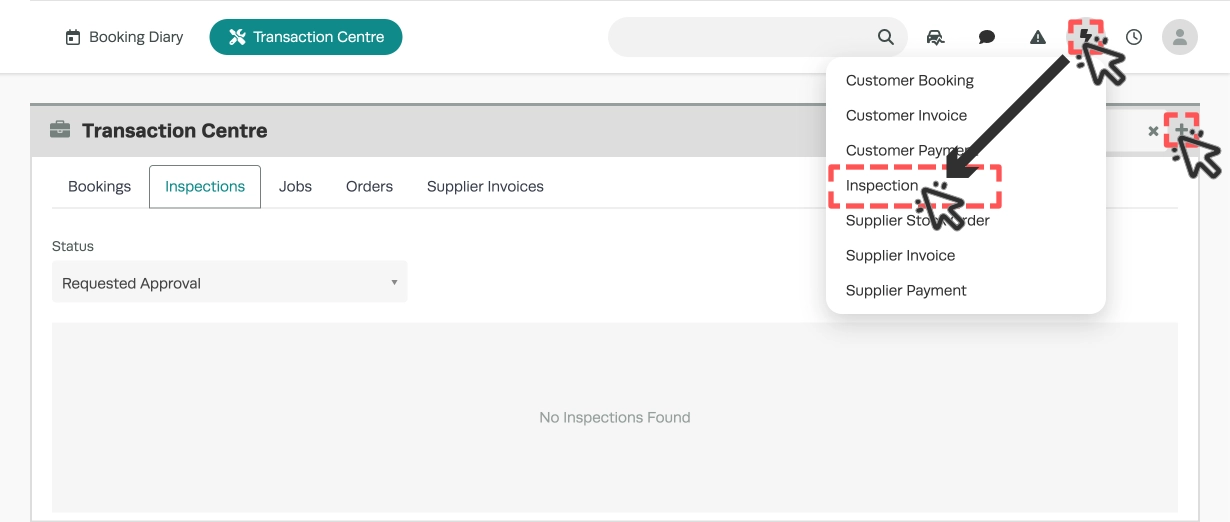
- To create a new Inspection you may select the Inspection option in the Lightning Bolt menu or use the + icon at the top right of the Inspections tab in the Transaction Centre.
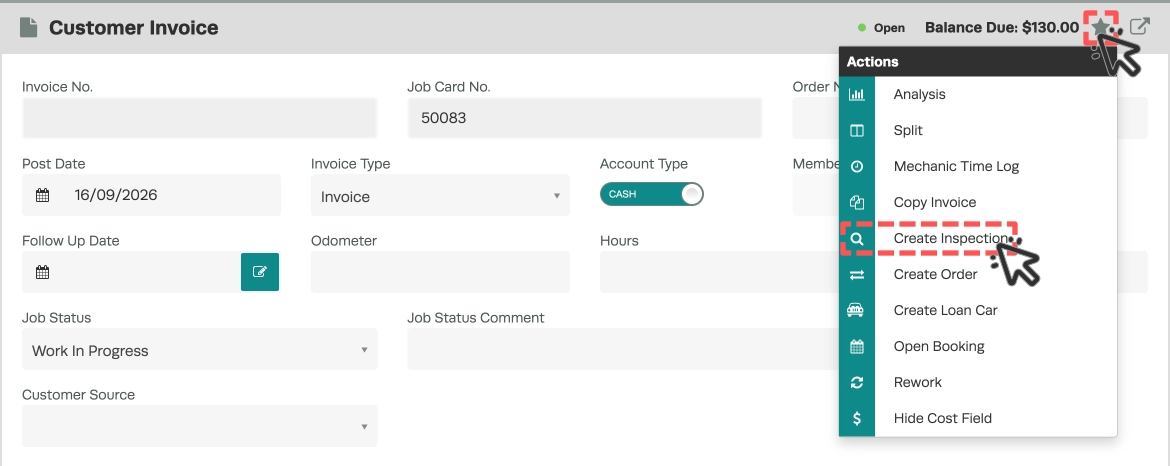
Please Note: You may also create an Inspection linked to a Booking or Job by clicking the Star icon and selecting Create Inspection in either card.

Add a Customer and Vehicle
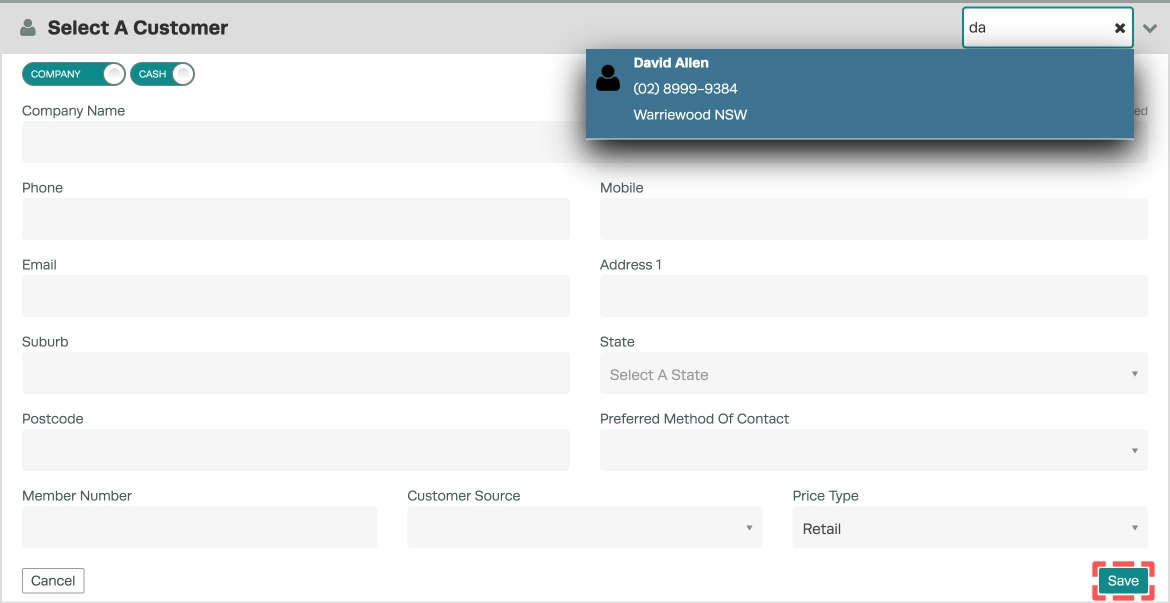
- You may use the search bar to select an existing Customer or enter the details of a new Customer.
- If you create a new Customer click the green Save button before continuing.
- You may then select a Vehicle from your Customer's list or use the + icon to create a new Vehicle.

Select an Inspection Template
- On the Inspection bar, choose from the list of Inspection templates you have created or see How to Create Inspection Templates, that can be tailored to your specific type of work and industry needs.

- Once you have selected the template, the system will auto-fill the Inspection section with the relevant information, and the Service Advisor details will be pulled from your Inspection Settings.
Complete the Inspection
- Once you select the template, fill out the required Checklist Items in each Group.
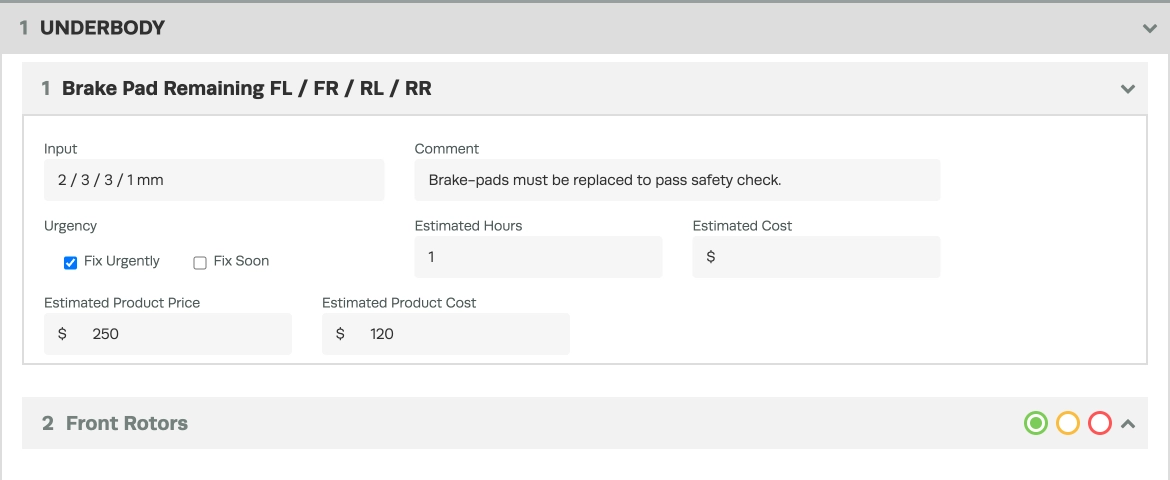
Please Note: All Red/Yellow/Green Checkboxes, Input and Tyre Pressure fields are mandatory. See how Inspection Groups and Checklist Items are set up in this article.
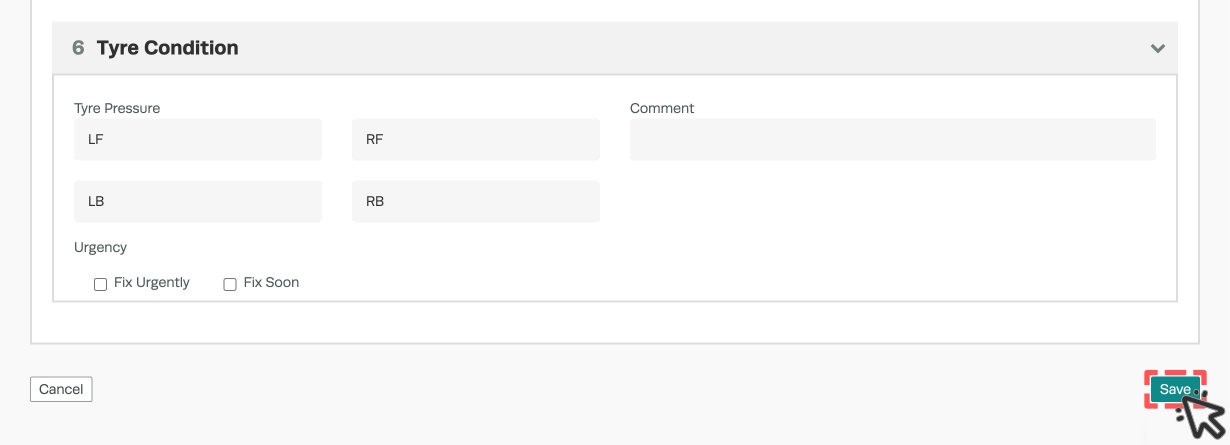
- After working through the fields of your Inspection, save the Inspection when done by clicking the green Save button.
- At this stage, if you would like to add any relevant photos or documentation a new Attachments section will be visible after the Vehicle details section. See How to Attach a File to your Workshop Software system.

Request Approval
After saving the document, a reference number will be allocated to the Inspection and it may then be sent by email or SMS to your Customer for Approval or you may contact them directly.
SMS or Email the Inspection
When an Inspection is sent as an Email or SMS the customer will have access to a webpage in which they can view your inspection notes, estimated time and cost and then approve or reject each item.
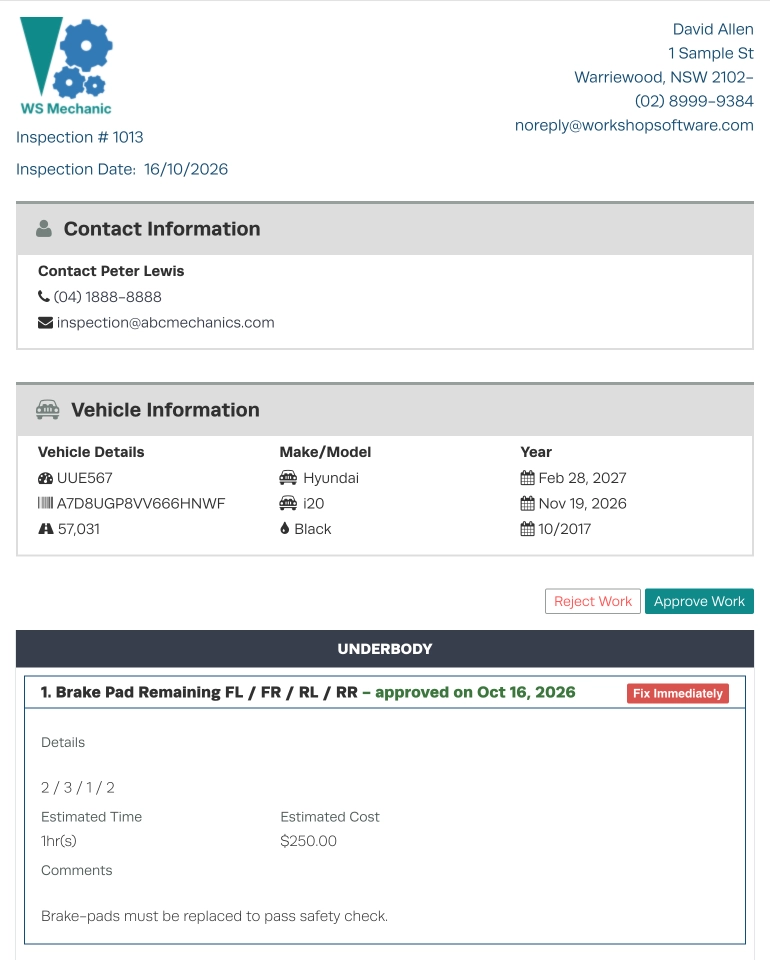
- Click the export button to send the Inspection via email or SMS to your Customer.

- A pop-up window will appear, set the Requesting Approval toggle to Yes if you need the Customer's approval and include a note to use the attached code to approve the works.
- Click the Send button to email or SMS your Customer.
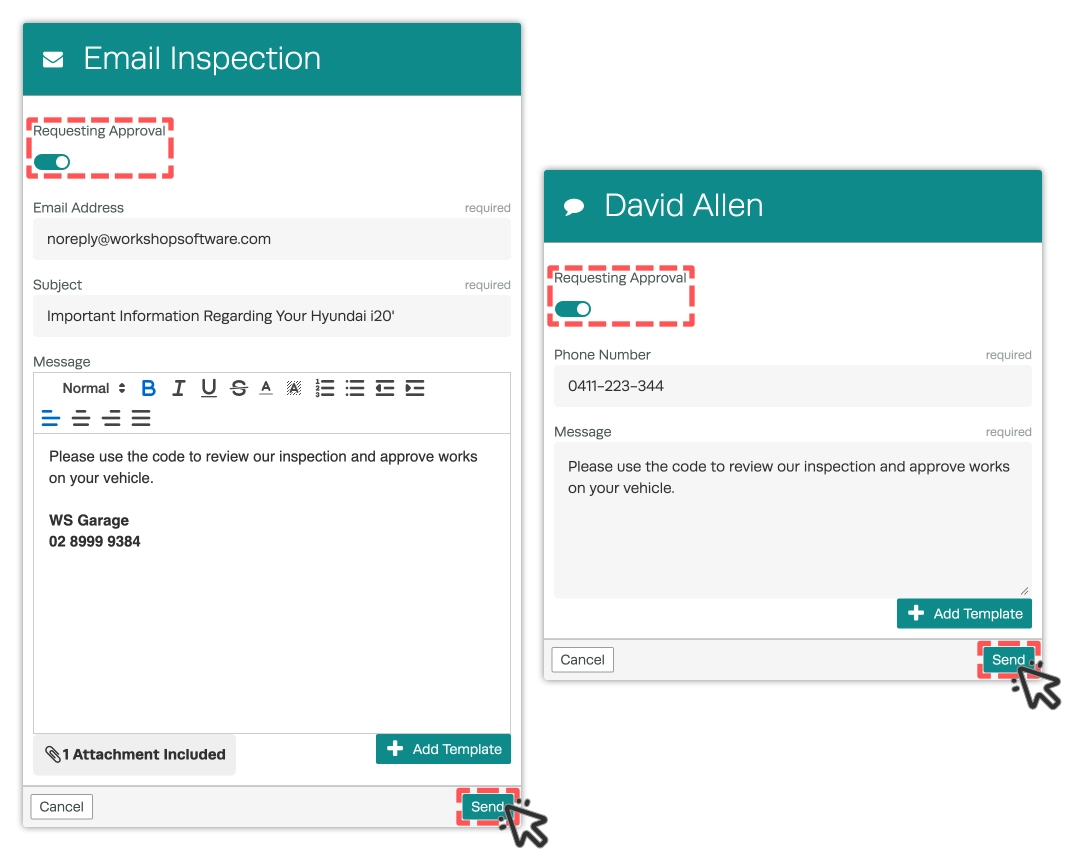
- Your customer will receive a link to the Inspection page and a Verification Code.
- When they click the Approve Work button in their Inspection they can paste the Verification Code from their message, select the works they would like to approve then click the Confirm button to provide approval.
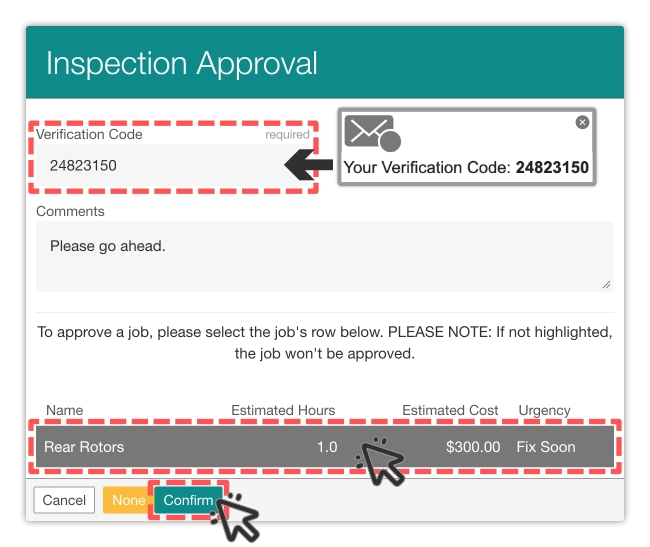
- Once the Customer approves the job the Inspections Tab on your Dashboard will show a list in the Approved section with the most recent approvals.
Please note: The Transaction Centre's Inspections tab will list all Inspections filtered based on their status; Draft, Requested Approval, Approved, Refused or Finalised.
Manually Approve Inspection
If you prefer to call a Customer directly for approval you may manually approve any Inspection item.
- Click the Star icon, then Approve Items.
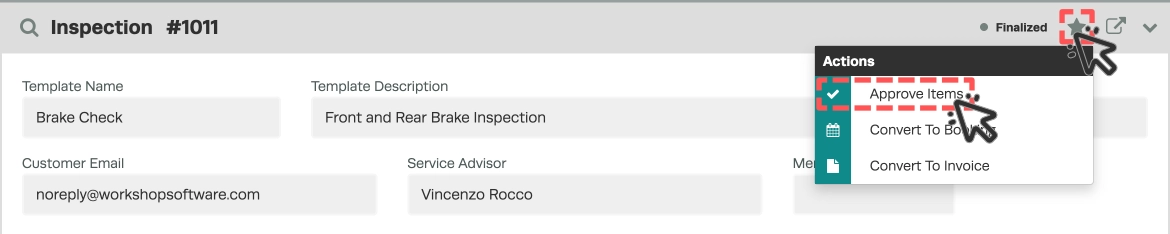
- A pop-up Inspection Approval window list's each item to be fixed, click one or more to choose them for approval.
- After selecting the items, click the green Confirm button and the Inspection will have its status changed to Approved.
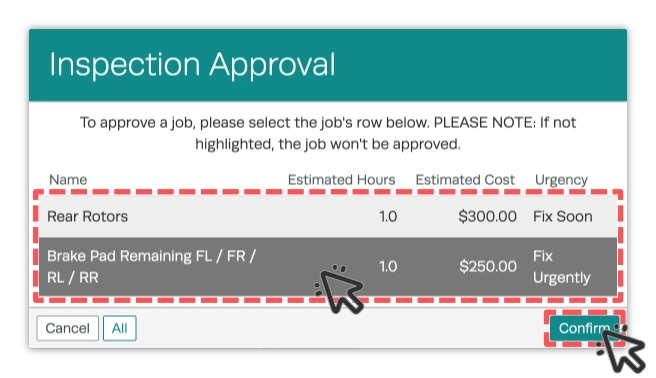
- The approved Inspection can be printed or sent out to the Customer by clicking the Export icon in the top right of the Inspection Card.
Finalise the Inspection
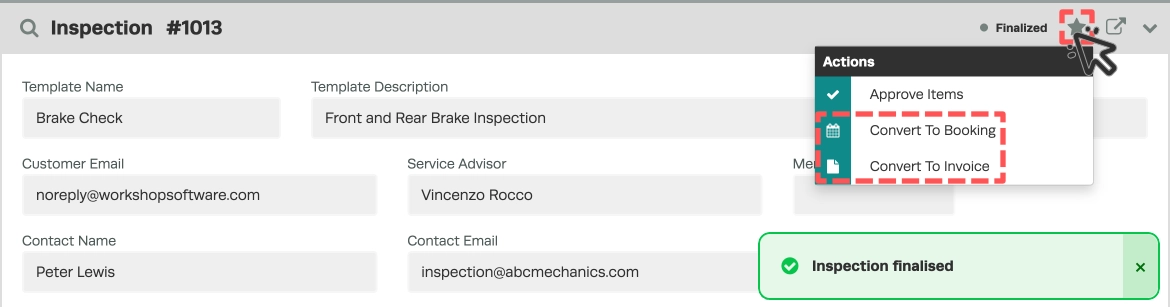
Finalising an Inspection prevents further items from being approved and will then allow you to convert the Inspection to a Booking or Job.
- After approval, you can review the approved items listed on the document and, if an item was not approved this still can be reviewed and manually approved before finalising the document.
- Once the approvals list is final click the Finalise button in the bottom right hand corner.
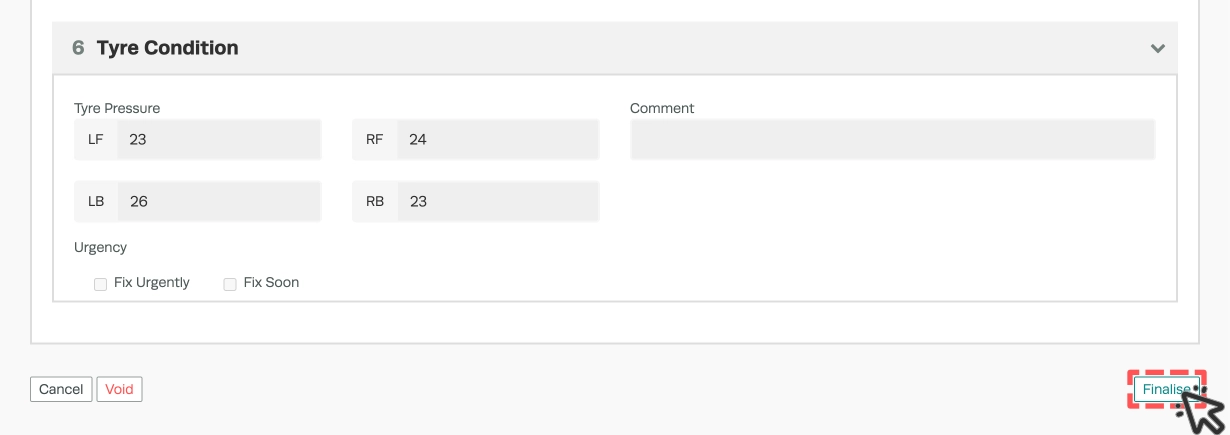
Convert the Inspection to a Booking or Job
A converted inspection is linked to the newly create Job or Booking and the product fields will be populated with the Labour and Products suggested for each approved checklist item.
- Click the Star icon in the top right hand corner or the Inspection card then select Convert to Booking or Convert to Invoice.