Skip to content

This article explains what to do when you add a new Product and Workshop Software tells you the Item Code already belongs to an inactive Product.
When old parts are made inactive then later stocked again Workshop Software will inform you of the original Product rather than create a second one with the same code.
When the Warning Appears
The warning only appears when you are adding a new Product from the Products list and the Item Code you type matches a Product you have made inactive. Upper and lower case do not matter, so oil-5w30 matches OIL-5W30.
- Click Products in the left hand sidebar menu to open your Product List.
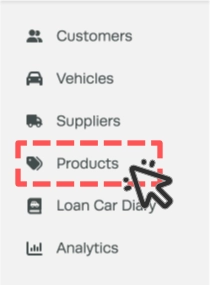
- Then click the + next to the filter box at the top of the Products list to create a new product.

- When you have typed the code in Item Code and click away, if the code belongs to an inactive Product the label above the field changes to Item Code (already exists, inactive) and a Reactivate link appears beside it.
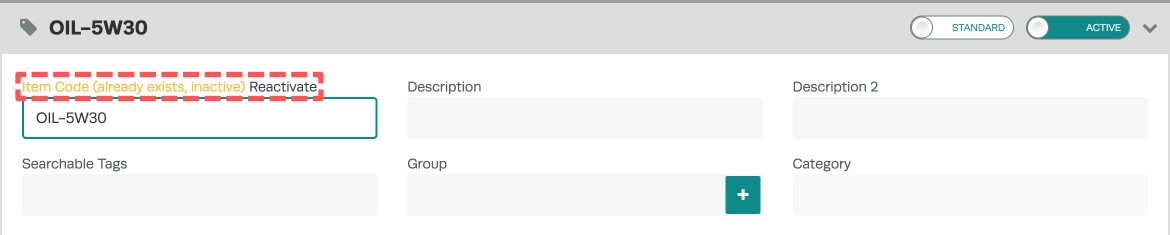
You now have two choices: bring back the inactive Product, or carry on and create a new one.
Restoring the Inactive Product
- Click Reactivate, a message asks "Are you sure you want to make XXXX active?", showing your Item Code, you may confirm by clicking Yes.
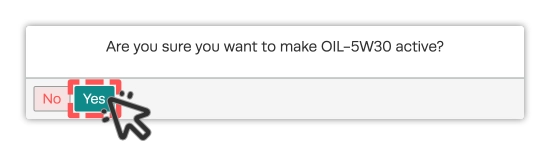
- Workshop Software shows Product Reactivated and opens the original Product, now active. Check its prices and stock details, make any changes, then click Save.
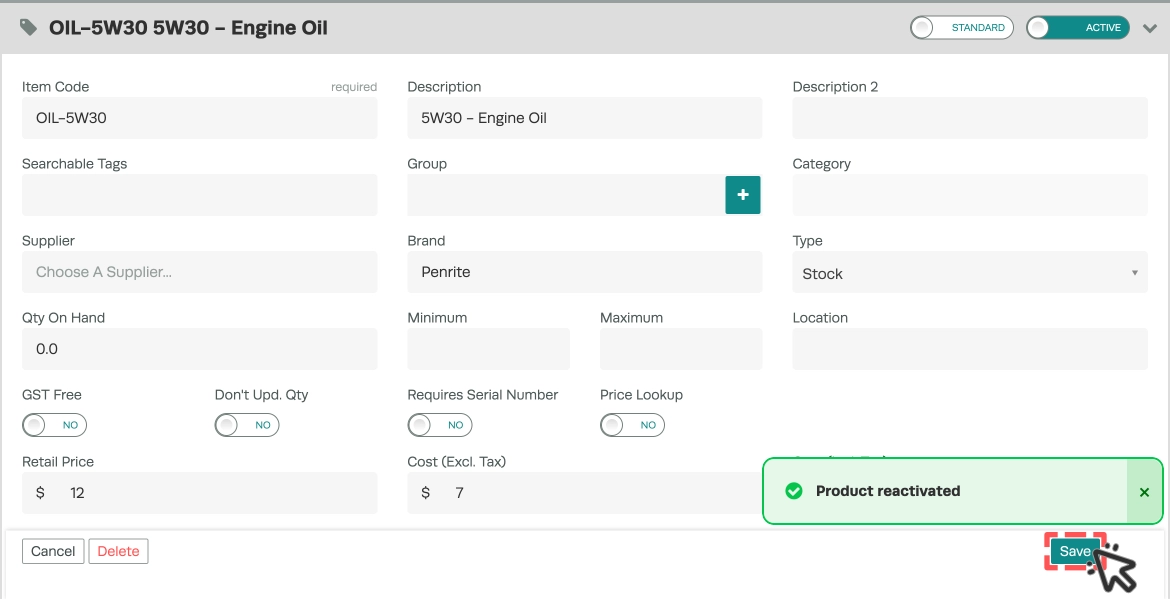
Please note: Anything you typed on the new Product screen, other than the Item Code, is not kept when you reactivate. The original Product opens instead with the details it had when it was made inactive.
Creating a New Product with Duplicate Code
If you really do want a separate Product with the same Item Code, ignore the Reactivate link.
- Fill in the rest of the Product details and click Save. A message says "XXXX already exists as an inactive product. Are you sure you want to create a new product?", showing your Item Code.
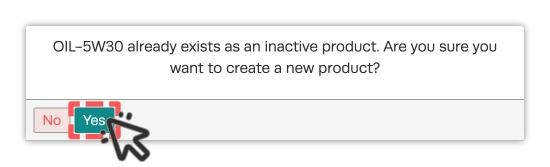
- Click Yes to save the new Product, or No to go back to the form without saving.
Good to Know
- If you change the Item Code after the warning appears the message clears and the code is checked again.
- If the code belongs to an active Product, you see a Item Code (already exists) label instead, with no Reactivate link.
- A deleted Product does not trigger the warning, only Products made inactive.
- You can still reactivate a Product the usual way: on the Products list, switch the toggle to Inactive, find the Product and click Activate.
Frequently Asked Questions
Why don't I see the warning when I edit an existing Product?
The check only runs when you add a new Product, editing a Product that already exists never shows it.
What if two inactive Products share the same Item Code?
Reactivate brings back the one that was changed most recently. To bring back a different one, change the toggle to Inactive on the Products list, find the Product and click Activate.
Will reactivating change my old Invoices or Job Cards?
No. Reactivating only makes the Product available again for new work. Past Invoices and Job Cards are unchanged.
Do I see this warning when I create a Product from an Invoice?
No, the warning only appears on the Products screen. If you are about to create a Product from an Invoice search your Products list with the toggle set to Inactive first to check if the code already exists.
I clicked Reactivate by mistake, how do I make the Product inactive again?
Open the Product, switch it from Active to Inactive at the top of the screen and click Save.