Skip to content

A Mechanic in Workshop Software represents anyone in your business who works on Vehicles, including Auto Electricians and Mechanic's Assistants. The Mechanics are used to allocate Booking event times in your Booking Diary and to Clock On and Off Labour Products included in your Jobs.
If you would like to rename your team to better reflect their role you may do so by changing their title in your Company Settings.
This article shows you how to add a new Mechanic in your Admin settings, which details to enter and how to define their working hours.
Create a New Mechanic
You may create new Mechanics in your Admin settings, there are no account limits or cost associated with Mechanic entries.
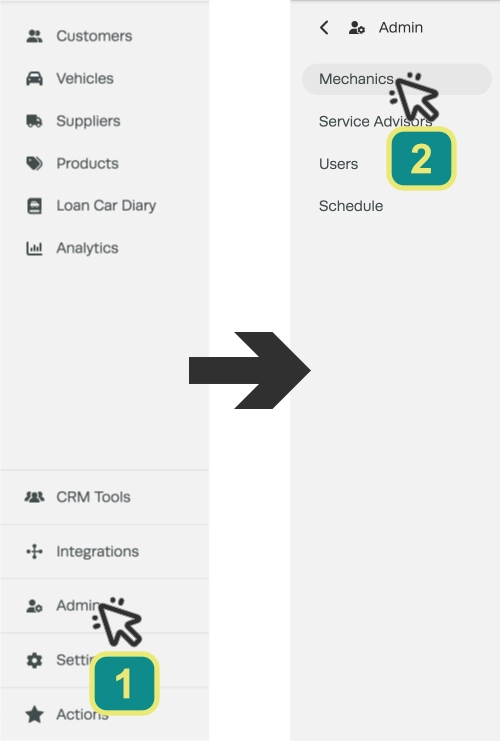
- In the left hand sidebar menu click on Admin (1) then select Mechanics (2).
- Select the + icon at the top right of the Mechanics card to open a blank Mechanic Details card.

Enter the Mechanic's Details
A Mechanic's details include their name, contact information, notes and Cost Per Hour value.
Please Note: The Cost Per Hour field is the cost of the Mechanic to your business, not the retail price of Labour you charge your Customers, it is used to calculate the allocated cost of each Mechanic's working time on Jobs.
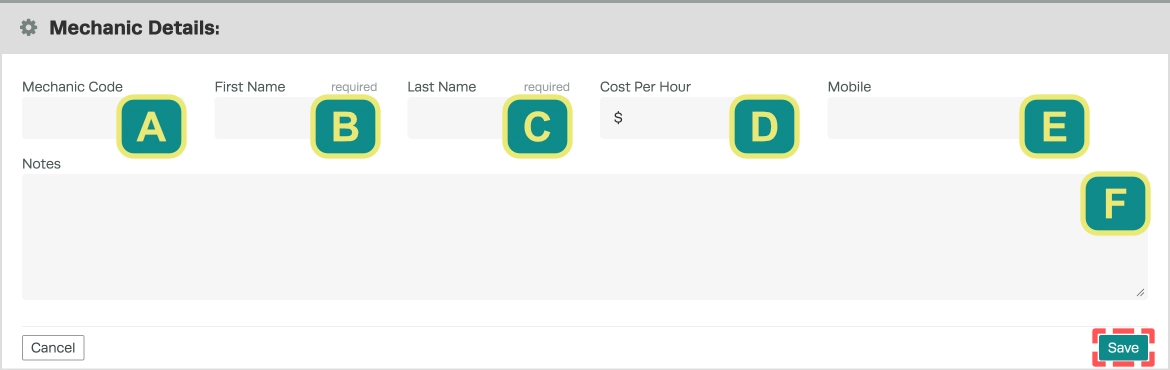
- Enter the details of the new Mechanic, then click Save before continuing to bring up the schedule options.
| Field | What it does |
|---|---|
| A. Mechanic Code | A short code used to identify the Mechanic and quickly search for them when allocating bookings or clocking on. |
| B. First Name | The Mechanic's first name. This field is required. |
| C. Last Name | The Mechanic's last name. This field is required. |
| D. Cost Per Hour | The hourly cost of the Mechanic to your business. |
| E. Mobile | The Mechanic's mobile phone number. |
| F. Notes | Any additional information you would like to record about the Mechanic. |
Enter the Mechanic's Schedule
The Mechanic's schedule is used in your Booking Diary to allocate event times and calculate the total hours available for Bookings each day when you use Online Booking Requests.
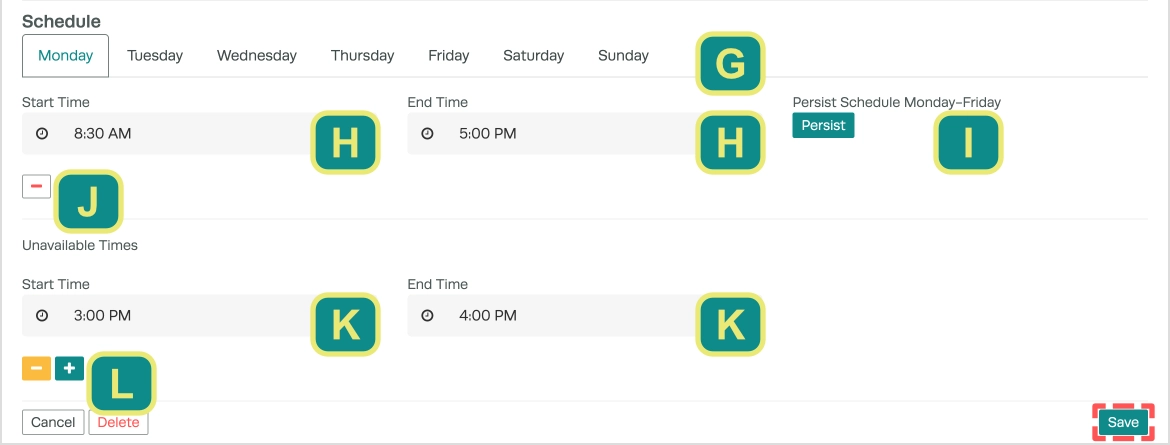
- In the tab for each day record you Mechanic's Start Time and End Time and any Unavailable Times where they cannot complete work.
Please Note: We do not recommend recording normal meals and breaks as unavailable times, the Mechanic may clock off a job while on break then clock back on. Unavailable times block the ability to assign a Booking to a Mechanic during this time and are more appropriate where a Mechanic will be off site or working on responsibilities away from the workshop floor.
- After recording the schedule click the green Save button before navigating away or creating a User Account.
| Field | What it does |
|---|---|
| G. Day Tabs | Select a day of the week to set the Mechanic's working hours for that day. |
| H. Start Time and End Time | The times the Mechanic starts and finishes work on the selected day. |
| I. Persist | Copies the schedule shown to every day from Monday to Friday. |
| J. Remove Schedule Time | Removes the working hours entered for the selected day. |
| K. Unavailable Start Time and End Time | A period of the day the Mechanic is unavailable. Bookings cannot be assigned to the Mechanic during this time. |
| L. Add or Remove Unavailable Time | Use the + button to add another Unavailable Time, or the - button to remove one. |
Create a User Account for the Mechanic
If your Mechanics will be using the Mobile App or Web App you may then create a user account and assign the Mechanic to that account.
A mobile app account allows the mechanic to access Bookings and Jobs to record their work and add notes, pictures and Inspections in the Mobile App.
Create a New Mobile App User
A web app account can be used for all of the above plus may be granted access to Two-Way SMS in the Mobile App and full access to any Workshop Software function on a PC.
Create a New User
Related Articles
- Mechanic Clock On and Clock Off in Workshop Software
- Clock On and Off in the Mobile App
- Assign a Mechanic to a Booking