Skip to content

Building on the steps outlined in How to Create a Booking in Workshop Software, this article provides a faster method for creating bookings when you already have a Customer or Vehicle in the system. This streamlined process ensures efficiency when handling repeat Customers or frequent Bookings.
Creating a Booking from the Booking Diary
If you are on the Booking Diary, you can quickly create a Booking with these steps.
- From the Booking Diary, double-click an empty time in a Mechanic or day's column, the + on a day's box in the Month View or the + Booking button to create a new Booking.
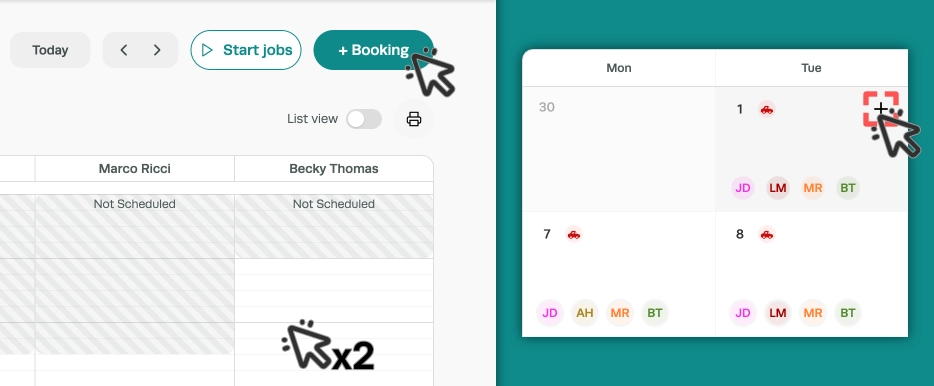
- The New Booking window opens on the diary. Search for the Customer (A) or click + Customer, pick or add the Vehicle (B), then enter a Description (C) and the Estimated Hours (1), Time (F) and Date (E).
- You may also Assign a Mechanic (D) or drag the booking onto a Mechanic's day after creation.
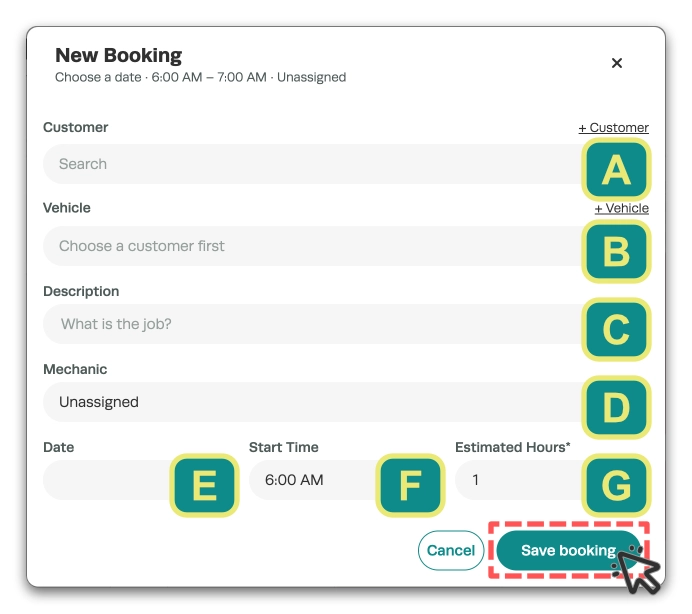
- Click Save booking, the Booking appears in the diary straight away.
Create a Booking using the Main Search Bar
The Main Search bar may be used to find Customers and their associated Vehicles or to search for a Vehicle by Registration number.
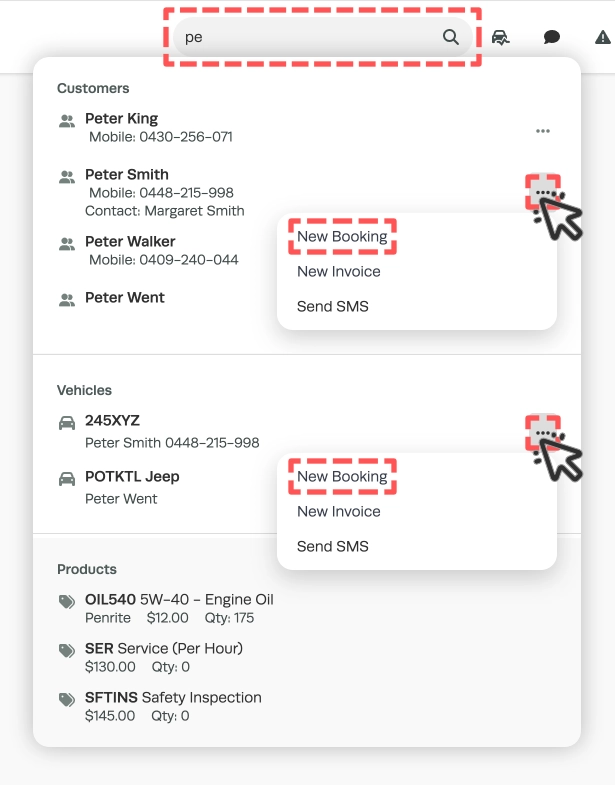
- To create a Booking from the search bar first complete enough information to display the Customer or Vehicle you would like to use.
- You may then click the ... icon and select New Booking
- The Booking will be created pre-populated with the chosen Customer or Vehicle.
Please Note: These bookings will default to today's date, please remember to change the Booking Date.
- To update the Booking Date, on the Booking details page change the Booking Date field, any Labour lines will update their times as you make this change, then Save your booking.