Skip to content
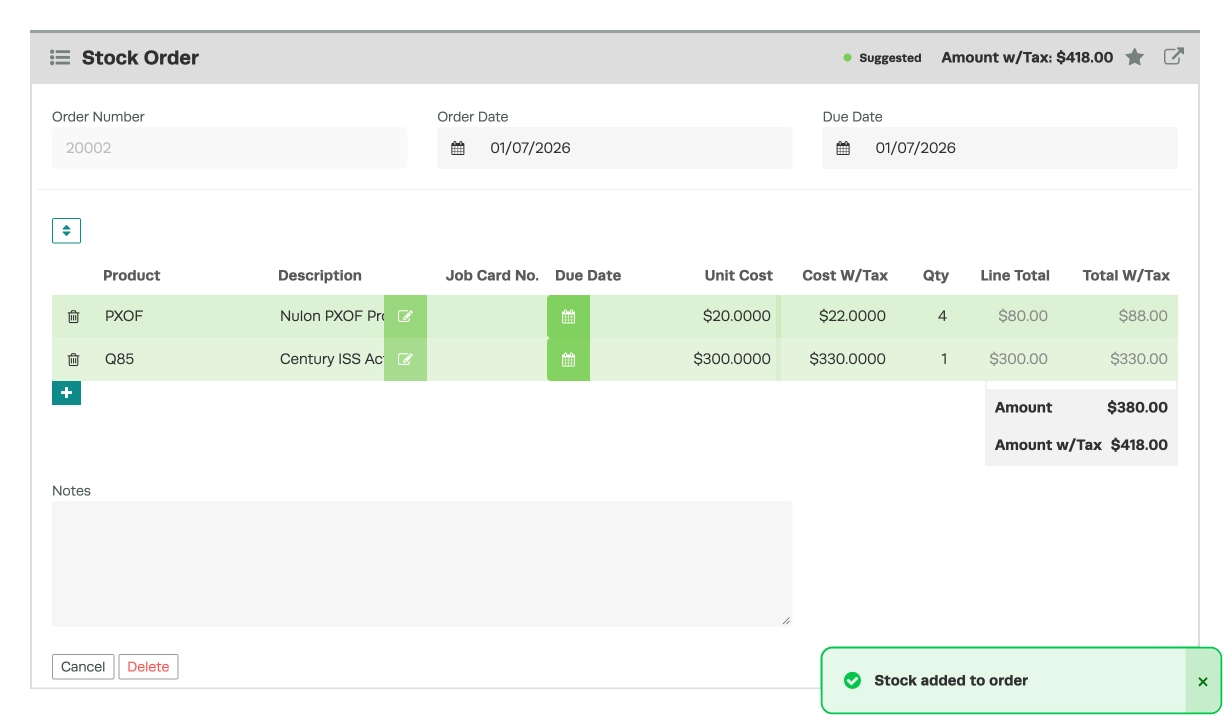
The Auto Create Stock Order function is used to quickly create a Supplier Stock Order for products with low Qty on Hand.
Please Note: The value of the Company Settings > Product Settings toggle Inc on Order Qty controls the behaviour of the Auto Create Stock Order function, when set to NO the system only considers the current Qty on Hand when populating a Stock Order.
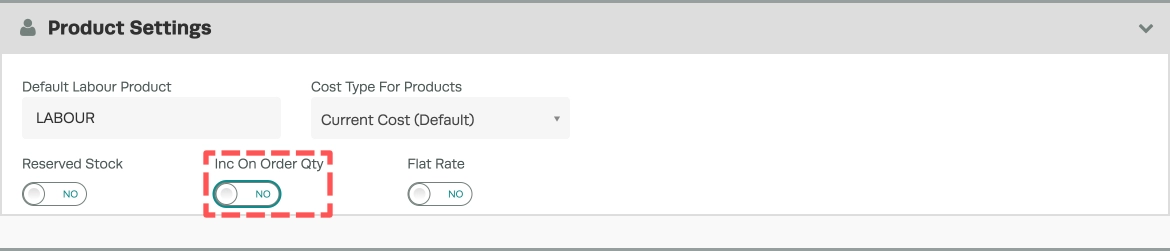
When Inc on Order Qty is set to YES If you have a product on back order, i.e. a Stock Order not fully received the automatic Stock Order may not pick up these products. The system now considers if the Qty on Hand plus the number of units on order exceed the Minimum value of the Product.
Defining Minimum and Maximum Product Quantities
Before a Stock Order may be automatically populated Products must be updated with a preferred Supplier and reorder quantities.
- Begin by opening the Product you wish to modify.
- Choose a preferred Supplier (A).
- Set the Minimum value (B), when the Qty on Hand falls below this number it will be detected during an Automatic Stock Order.
- Set the Maximum value (C), populated stock orders will contain as many units of the Product required to bring the total Qty on Hand to this number.
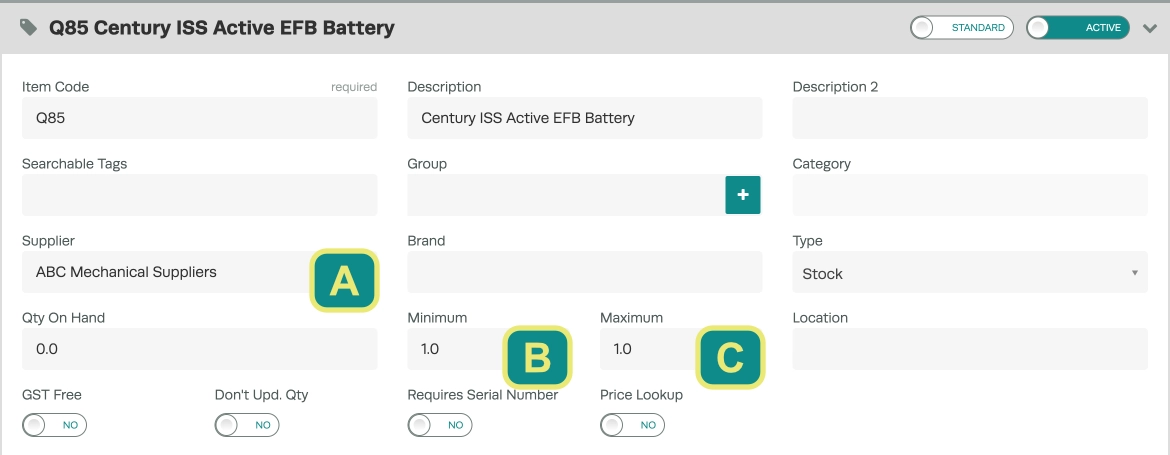
- Once these fields have been entered ensure you Save the product before continuing.
Automatically Populating a Supplier Stock Order
Once you have created or modified all products you wish to be detected you may now create a Stock Order and use the Auto Create function.
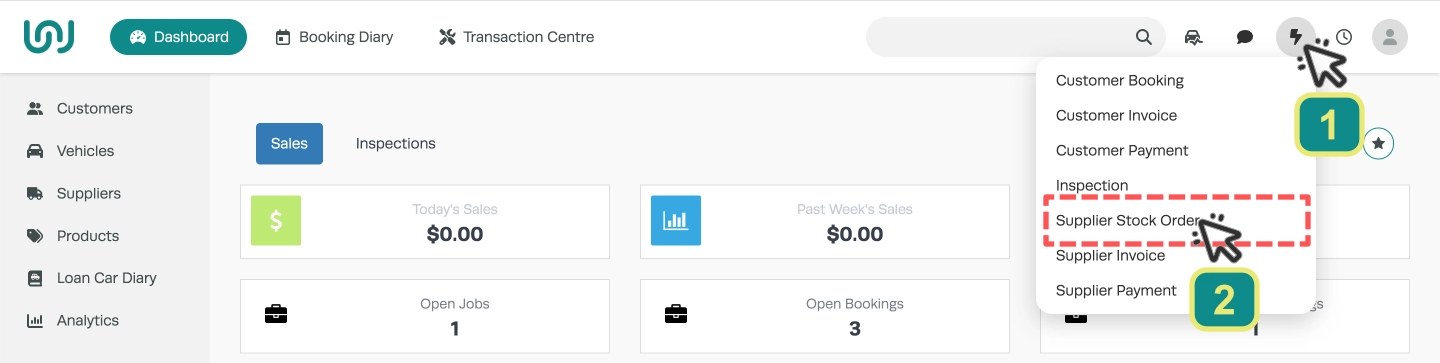
- To create a new Stock Order click the Lightning icon (1) then select Supplier Stock Order (2).
- Choose the Supplier for whom you would like to create the Stock Order.

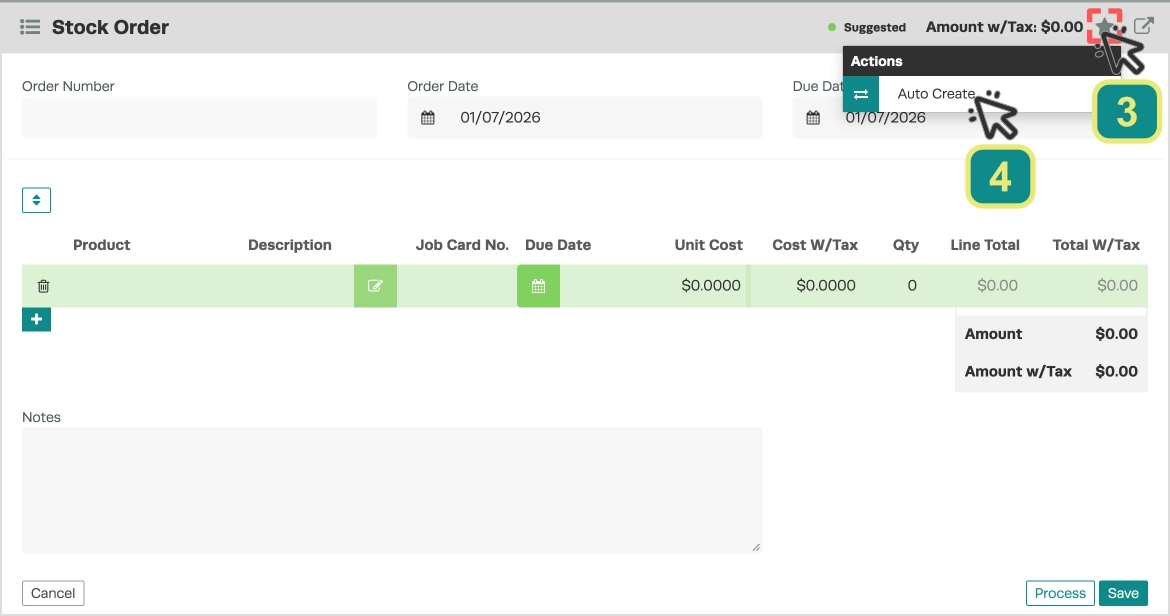
- Click the Star icon (3) then select Auto Create (4).
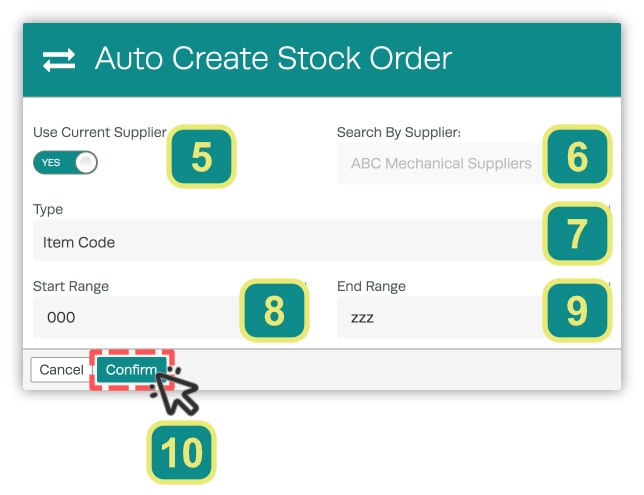
- Toggle on Use Current Supplier (5) and confirm the Supplier (6) you wish to use is listed.
- Set the Type drop down menu (7) to “Item Code”.
- For Start Range (8) enter “000” and for End Range (9) enter “zzz”, this encompasses all possible Item Codes so will add all Products with this preferred Supplier.
- Click Confirm (10).
- All products with a combined Qty on Hand and Qty on Order (If used) below their Minimum value will be added to the Stock Order with a Qty sufficient to reach the Maximum value.
- You may now modify and Process the stock order or use the Star Icon to return the parts to an integrated Supplier such as Repco or Burson for order.