Skip to content
Workshop Software lets you send invoices, job cards, quotes, and credits directly to your customer’s mobile phone via SMS. This guide covers how to set up and use the SMS feature.
Step 1: Purchase SMS Credits
- Before you can send SMS messages, you need to purchase SMS credits.
- See How to Purchase SMSs for instructions.
Step 2: Open the Invoice and Click the Export Icon
- Open the invoice or job card you want to send.
- Click the box with an arrow icon on the invoice banner.
Step 3: Select SMS Invoice or Job Card
- From the dropdown menu, select SMS Invoice or SMS Job Card.

Sending a Quote or Credit via SMS
If you need to SMS a quote or credit instead, first change the invoice type on the invoice:
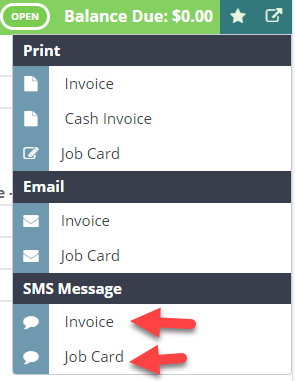
Then follow the same steps above.

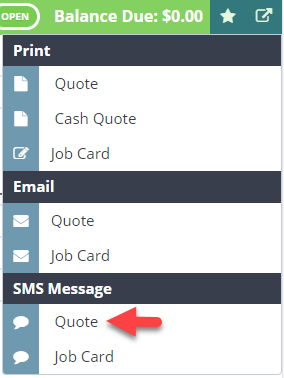
Step 4: Confirm Details and Send
- Verify the customer’s mobile number is correct.
- Write your message in the text field.
- Click Send.
Step 5: Customer Receives the SMS
Your customer will receive an SMS with a link to view their invoice, job card, quote, or credit.
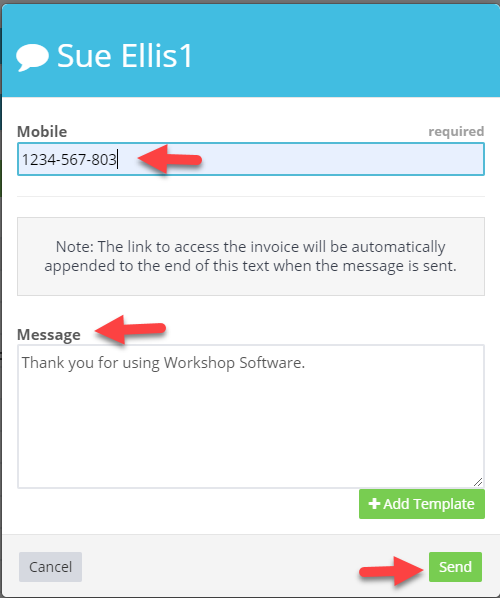


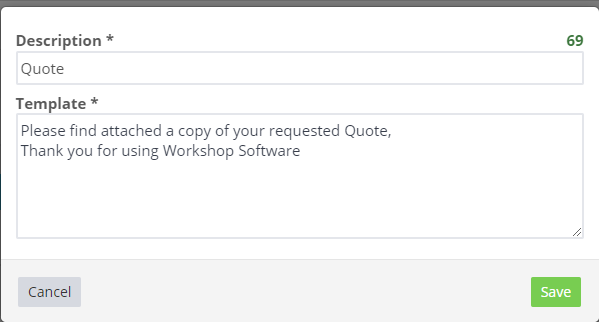
Press the green plus sign, enter a Description of the template, then add the message you would like to send.
https://workshopsoftware.com/knowledge-base/settings/set-up-a-sms-template
5. Your Customer will receive a SMS with a link for the invoice.
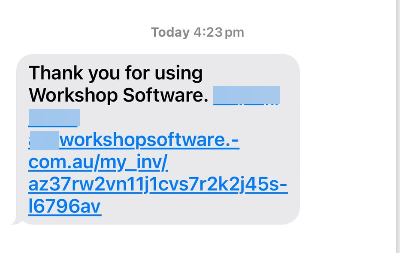
6. Press the link to view your invoice/ Quote.
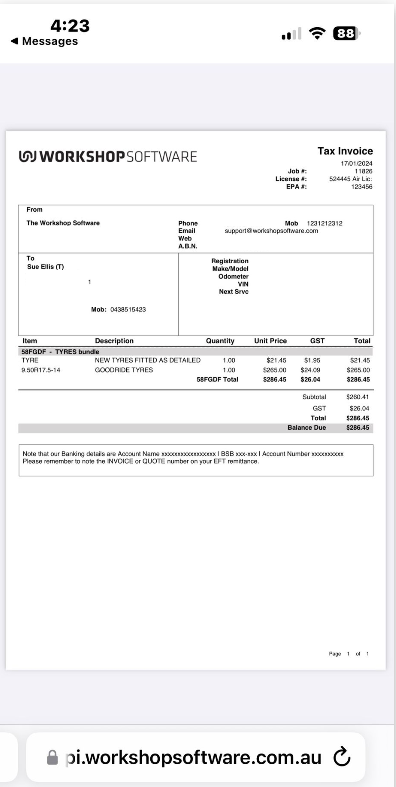
Viewing the Invoice on a Mobile Device
When the customer taps the link, the invoice opens in their mobile browser:
Good to Know
- You need to purchase SMS credits before you can send messages. Check your SMS balance in the Settings area.
- Make sure the customer’s mobile number is correct before sending.
- The SMS link allows customers to view the document on any device with a web browser.
- This feature works for invoices, job cards, quotes, and credits.
Frequently Asked Questions
How many SMS credits does each message use?
Each SMS uses one credit for a standard-length message. Longer messages may use additional credits.
Can customers reply to the SMS?
The SMS is sent from a system number. Customer replies are not received in Workshop Software – use this for one-way notifications.