 Skip to content
This article explains how, as an admin, you control which mobile app notifications each team member receives. You set this from the web app, each team member then fine-tunes their own alerts on their phone.
How it works
You decide whether each user receives Admin notifications, Mechanic notifications or both. Once you enable a type for someone they can switch the individual alerts on or off in the mobile app.
- Admin notifications cover the front desk: New Booking Requests and Payments Received.
- Mechanic notifications cover the workshop floor: New Assigned Jobs and a Clock-out Reminder on the mechanic’s phone. A mechanic is only notified about jobs assigned to them.
Setting a User’s Notifications
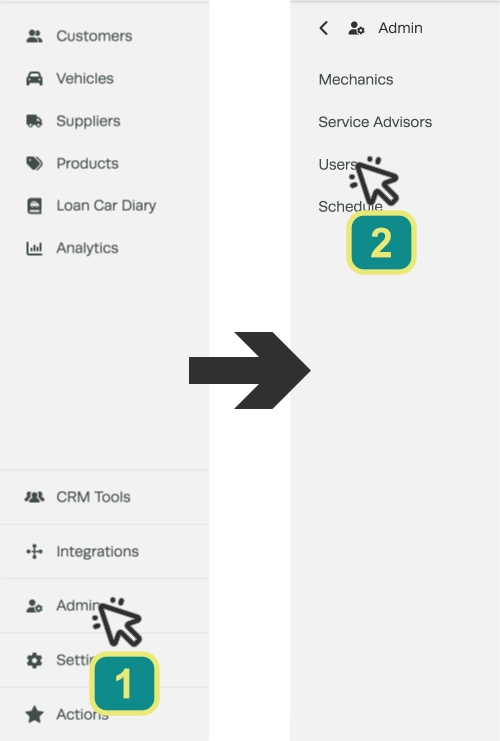
- On the web app click Admin (1) then select Users (2) from the left hand side bar menu.
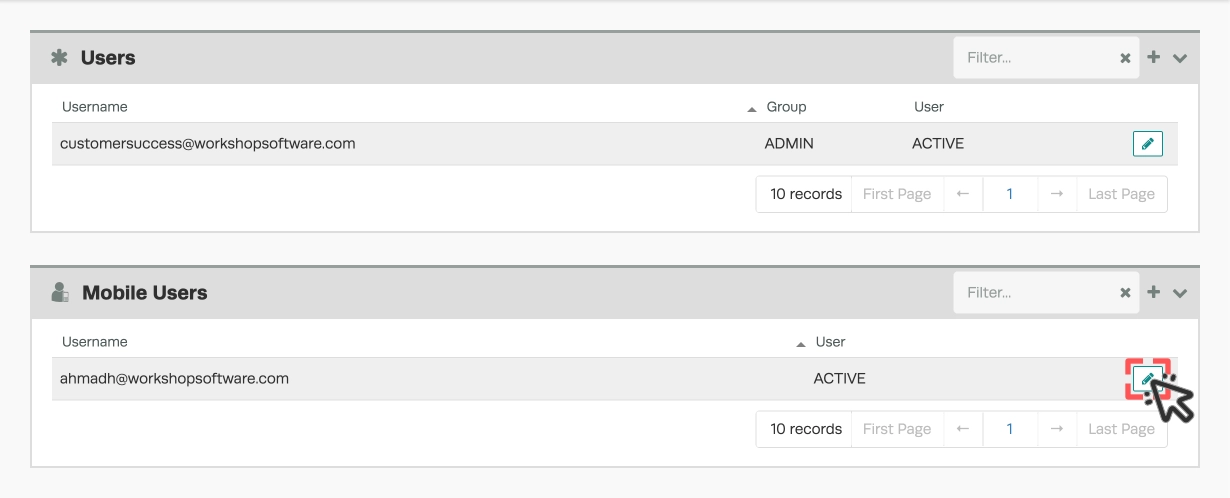
- Under the header Mobile Users, click the user you want to update.
- Scroll to the Notifications section and switch the Admin (A) and/or Mechanic (B) toggles to Yes then click Save.
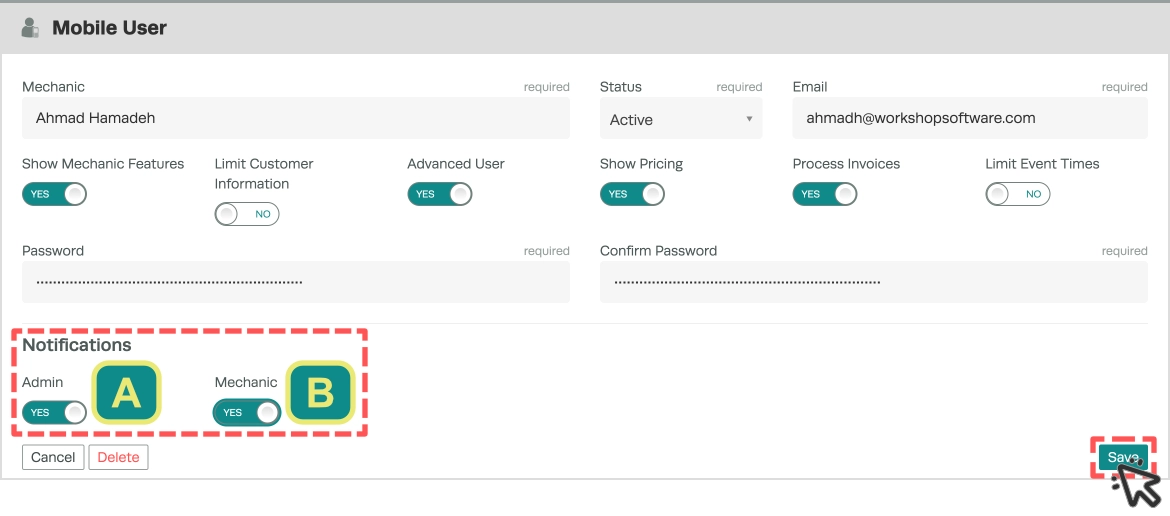
- The change is saved for that user, they will now see those notifications available to manage in the mobile app under More > Notifications.
Please note: The user still needs to turn notifications on in the app and their phone’s permissions before notifications will be received, see Set Up and Manage Push Notifications on Your Phone.
Important: Critical messages from Workshop Software are sent to every app user and can’t be switched off. This is by design so genuinely important system-wide alerts always get through.
Good to Know
- If a mobile user has nothing enabled here, their app shows No notifications available and points them to Admin > Users.
- Turning a type on automatically builds that user’s alert list; they then choose which individual alerts to receive on their own phone.
Frequently Asked Questions
What’s the difference between Admin and Mechanic notifications?
Admin notifications are about the front desk — new online booking requests and payments received. Mechanic notifications are about the workshop floor — jobs assigned to that mechanic and a reminder if they’re still clocked in at closing time.
Can a mechanic see notifications for jobs that aren’t theirs?
No. The New Assigned Job notification only goes to the mechanic the booking is assigned to.
I enabled notifications for a user but they say they get nothing.
Ask them to open the app, go to More > Notifications, turn on Enable Notifications, and allow their phone’s permission prompt. Notifications will only arrive while they are logged in.
The user should also check if their phone’s Do Not Disturb mode is enabled and notification settings in its system settings allow the Workshop app to display notifications.
Can my team turn off notifications I’ve enabled?
Yes. You decide which types are available to each person; they choose which individual alerts to receive on their phone. Critical messages are the exception — those cannot be turned off.
